How to Export a CBAM Declaration PDF from the Portal

How to Export a CBAM Declaration PDF from the Portal
The CBAM Declarant Portal has a built-in PDF export that generates a human-readable copy of your declaration. It is not the formal filing. The XML data you submit through the Portal is what the EU CBAM Registry actually processes. The PDF is your record, your internal verification tool, and your supporting evidence for audits.
To get one now:
- Log in via UUM&DS and open the CBAM Declarant Portal
- Navigate to My quarterly reports on the dashboard
- Select the relevant quarter and open the report
- Click Export or Download PDF to generate and save the file
That PDF captures the declaration summary, totals, and attachments list in a format your team can read and review. The structured field mappings and machine-readable codes stay in the XML. Keep both.
Key Takeaways
The CBAM PDF export is a human-readable audit artifact, not a formal filing. The XML submission is what the Registry processes, and retaining both alongside raw supplier data is what makes a declaration audit-ready.
| Point | Details |
|---|---|
| PDF role | The PDF is a supporting record; the XML portal submission is the formal filing the Registry processes. |
| Pre-export validation | Verify totals, operator mappings, and attachment links before clicking Download PDF. |
| Bulk upload naming | Attachment filenames in the ZIP must match XML references exactly to avoid rejected uploads. |
| Audit trail essentials | Retain the PDF, XML submission ID, supplier documents, and a mapping spreadsheet for each quarter. |
| CarbonOps | Automates HS/CN mapping, emissions application, and export of portal-compatible XML and PDF with audit metadata. |
Table of Contents
- How to generate and download a CBAM PDF export from the Portal
- What the PDF contains and how it differs from the formal XML submission
- How PDFs fit into bulk uploads and accepted attachment formats
- What records to keep and how to structure an audit trail
- How to standardize supplier data before you export
- Common CBAM PDF export problems and how to fix them
- How CarbonOps handles CBAM PDF export and filing-ready output
- The PDF is not the problem. The process around it is.
- CarbonOps turns supplier data into a filing-ready CBAM declaration
- Sources
How to generate and download a CBAM PDF export from the Portal
Authentication comes first. Access to the Portal runs through UUM&DS (Uniform User Management and Digital Signature). If your organization uses delegated access, confirm your user rights before attempting to export. The official user manual documents the Download PDF function in section 4.5.12, including the UI confirmation messages you will see when the file is ready. For UUM&DS connection issues or delegation setup, contact your national CBAM helpdesk.
Once authenticated:
- Go to My quarterly reports from the main dashboard
- Select the reporting quarter you want to export
- Open the report to view its full contents
- Click Export / Download PDF — the Portal displays a download information message, then a “File downloaded” confirmation
Before you click export, do a quick pre-export check. Verify that totals match your source data, confirm all operator and installation records are mapped correctly, and check that any attachments you intend to include are already linked to the report. The UI manual for Declarants covers the dashboard layout and report navigation in detail, with screenshot guidance for locating the export control.
Pro Tip: After downloading, immediately rename the file using a consistent convention: IMPORTER_QUARTER_YEAR_CBAM.pdf (e.g., AcmeCorp_Q1_2026_CBAM.pdf). Open the PDF and visually scan the totals against your source spreadsheet before filing it in your archive. Catching a mismatch at this stage costs minutes; catching it during an audit costs much more.
What the PDF contains and how it differs from the formal XML submission
The PDF is a record and supporting document. The XML or portal-submitted data is the formal machine-readable submission the Registry relies on for processing.
What the PDF typically includes:
- Declaration summary (importer, reporting period, goods covered)
- Aggregated embedded emissions totals by CN code
- List of attachments referenced in the report
- Operator and installation identifiers
What stays in the XML only:
- Structured field mappings the Registry parses automatically
- Machine-readable CN codes and sector classifications
- Validation-ready data elements tied to the XSD schema
The CBAM Questions and Answers document clarifies that authorised declarants access the CBAM Registry to manage declarations and meet reporting timelines. The Registry processes structured submissions, not PDF files. PDFs attached to a report serve as supporting evidence, not as a substitute for the structured data the Registry requires.
For compliance officers, this distinction has a direct operational consequence. A stored PDF alone will not satisfy an audit. You need the underlying raw supplier data, the XML submission record, and any mapping spreadsheets that reconcile supplier values to portal fields. The PDF supports the audit packet; it does not replace it.
How PDFs fit into bulk uploads and accepted attachment formats
The Portal supports two submission methods: manual entry through the web UI and bulk upload via a ZIP package. The ZIP structure packages an XML report file together with binary attachments. PDFs are a fully accepted attachment format in that package.
The application user manual lists the accepted binary attachment formats for bulk submissions:
File naming is where bulk uploads most often break. Every attachment referenced in your XML must have a filename that matches exactly, character for character, what appears in the ZIP. A practical naming convention: IMPORTER_SUPPLIERID_QUARTER_DOCTYPE.pdf (e.g., AcmeCorp_SUP001_Q1-2026_EmissionsReport.pdf). The national user manuals.pdf) include sample XSD and ZIP structure examples you can use to validate your package before submission.
What records to keep and how to structure an audit trail
Retain the exported PDF, the underlying raw supplier data, the XML submission record, and any mapping spreadsheets that link portal fields to supplier source documents. That combination is what a national competent authority will expect to see.
Recommended record fields for each imported consignment:
- Importer name and EORI number
- HS/CN code and CBAM sector
- Supplier name and unique supplier ID
- Emission factor source (supplier-specific or Commission default)
- Direct and indirect embedded emission values
- Invoice reference number and date
- PDF export timestamp
- XML submission ID from the Portal
For retention period, follow the guidance your national competent authority publishes. Store files in encrypted storage with access logging. A shared drive with no access controls is not adequate for CBAM audit evidence.
| Record Type | What to Retain | Why It Matters |
|---|---|---|
| PDF export | Timestamped declaration summary | Human-readable audit artifact |
| XML submission | Full structured filing | Registry-processable formal record |
| Supplier documents | Emissions reports, invoices | Substantiates embedded emission figures |
| Mapping spreadsheet | Portal field to supplier source links | Speeds audit investigations |
To assemble an audit packet, tie the PDF export to the XML submission ID, attach the original supplier documents for each line item, and include the mapping spreadsheet. Any auditor should be able to trace a single emissions figure from the PDF back to the supplier invoice without asking you for additional context.
How to standardize supplier data before you export
Standardize supplier data into a single structured intake before you touch the Portal. Entering unstructured data directly into the Portal UI is the fastest route to a PDF that does not match your supplier evidence.
Concrete steps:
- Centralize incoming invoices and supplier emissions emails into one folder per quarter
- Extract the relevant fields: HS/CN code, mass, country of origin, embedded emissions (direct and indirect), emission factor source
- Populate the Commission Excel template with those values and validate units (tonnes CO2e per tonne of goods)
- Cross-check HS/CN codes against the CBAM-covered goods list before entry
- Upload the structured data or enter it into the Portal, then generate the PDF
Pro Tip: Maintain a canonical supplier ID across all your records — one consistent identifier per supplier that appears in your intake spreadsheet, your mapping file, and your ZIP attachment names. When an auditor asks about a specific supplier’s emissions figure, that ID is the thread that connects every document in the chain.
A mapping file from supplier fields to Portal data elements pays for itself the first time you need to correct a submission. Without it, tracing a mismatch between the PDF and the source invoice means re-reading every document from scratch.
Common CBAM PDF export problems and how to fix them
Most export failures fall into a short list of repeatable causes.
- Download does not start: Check your UUM&DS session. An expired session or insufficient delegated rights is the most common cause. Re-authenticate and confirm your user role includes export permissions.
- PDF is incomplete or shows missing fields: The report likely has unmapped operator or installation records. Return to the report, complete the missing mappings, save, and re-export.
- Bulk upload rejected due to attachment errors: File names in the ZIP do not match the references in the XML. Open the XML, copy the exact filename strings, and rename your attachment files to match before repackaging.
- Unsupported file type error: Convert the attachment to an accepted format (PDF, DOCX, XLSX, JPEG) before adding it to the ZIP.
- ZIP packaging errors: Validate your package against the sample XSD and sample ZIP included in the UI manual annexes before resubmitting. Most structural errors surface immediately against the schema.
- HS/CN mapping errors: A CN code that does not match a CBAM-covered good will cause the line to fail validation. Cross-reference the Commission’s published CN code list and correct the entry in your source data before re-uploading.
If a submission failure is reproducible and the error message points to a Registry-side issue rather than a file problem, escalate to your national competent authority or the Portal helpdesk. Document the error message, the submission timestamp, and the XML submission ID before you contact them.
How CarbonOps handles CBAM PDF export and filing-ready output
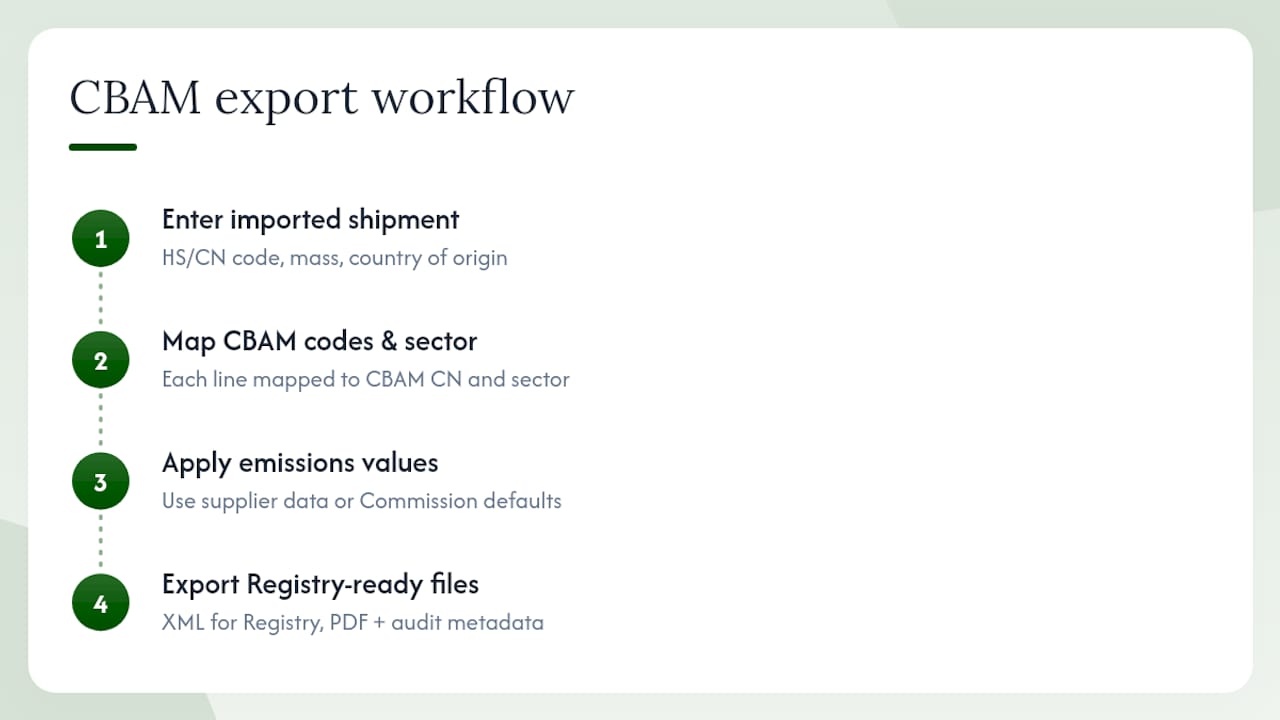
CarbonOps automates the full intake-to-export sequence: shipment entry, HS/CN mapping, emissions application, and generation of a portal-compatible XML with a clean PDF export and audit metadata.
The workflow follows four steps. You enter each imported shipment with its HS/CN code, mass, and country of origin. CarbonOps maps each line to its CBAM CN code and sector. Where supplier-specific embedded emissions are missing, it applies the Commission’s published default values. The completed declaration is then exported in the format the EU CBAM Registry expects, with a PDF generated alongside it for your records.
For compliance officers managing multiple quarters or a high volume of CN codes, the manual mapping and file-naming steps described in this guide are where errors accumulate. CarbonOps addresses that directly: consistent file naming, embedded audit trail metadata, and a filing history that ties each PDF export to its underlying declaration data — without a subscription or platform deployment.
Benefits for compliance teams: reduced manual mapping errors, consistent attachment naming that matches XML references automatically, and a faster pre-submission verification step because the PDF reflects the same structured data the Registry will process. CarbonOps supports single declarations and multi-pack purchases, so there is no recurring commitment if your filing volume is seasonal.
The PDF is not the problem. The process around it is.
Most compliance officers treat the CBAM PDF export as the finish line. It is not. The PDF is a receipt. What actually matters is whether the data behind it — the supplier emissions figures, the CN code mappings, the operator records — is accurate, traceable, and stored in a way that survives an audit.
The conventional advice focuses on the Portal steps: log in, navigate, click download. That is fine as far as it goes. What it misses is that the PDF will only be as reliable as the intake process that preceded it. A PDF generated from unvalidated supplier data, with inconsistent file names and no mapping spreadsheet, is a liability, not an asset.
The practitioners who handle CBAM audits well are not the ones with the cleanest PDFs. They are the ones who can open a mapping spreadsheet and trace any figure in the PDF back to a specific supplier invoice in under two minutes. Build that traceability first. The PDF export is the last step, not the most important one.
CarbonOps turns supplier data into a filing-ready CBAM declaration
Filing a CBAM declaration without a structured intake process means manual CN code lookups, inconsistent file names, and a PDF that may not match your supplier evidence. CarbonOps removes that friction: bring your supplier data, and get a portal-compatible XML and a clean PDF export back, with audit metadata included and no platform to deploy.
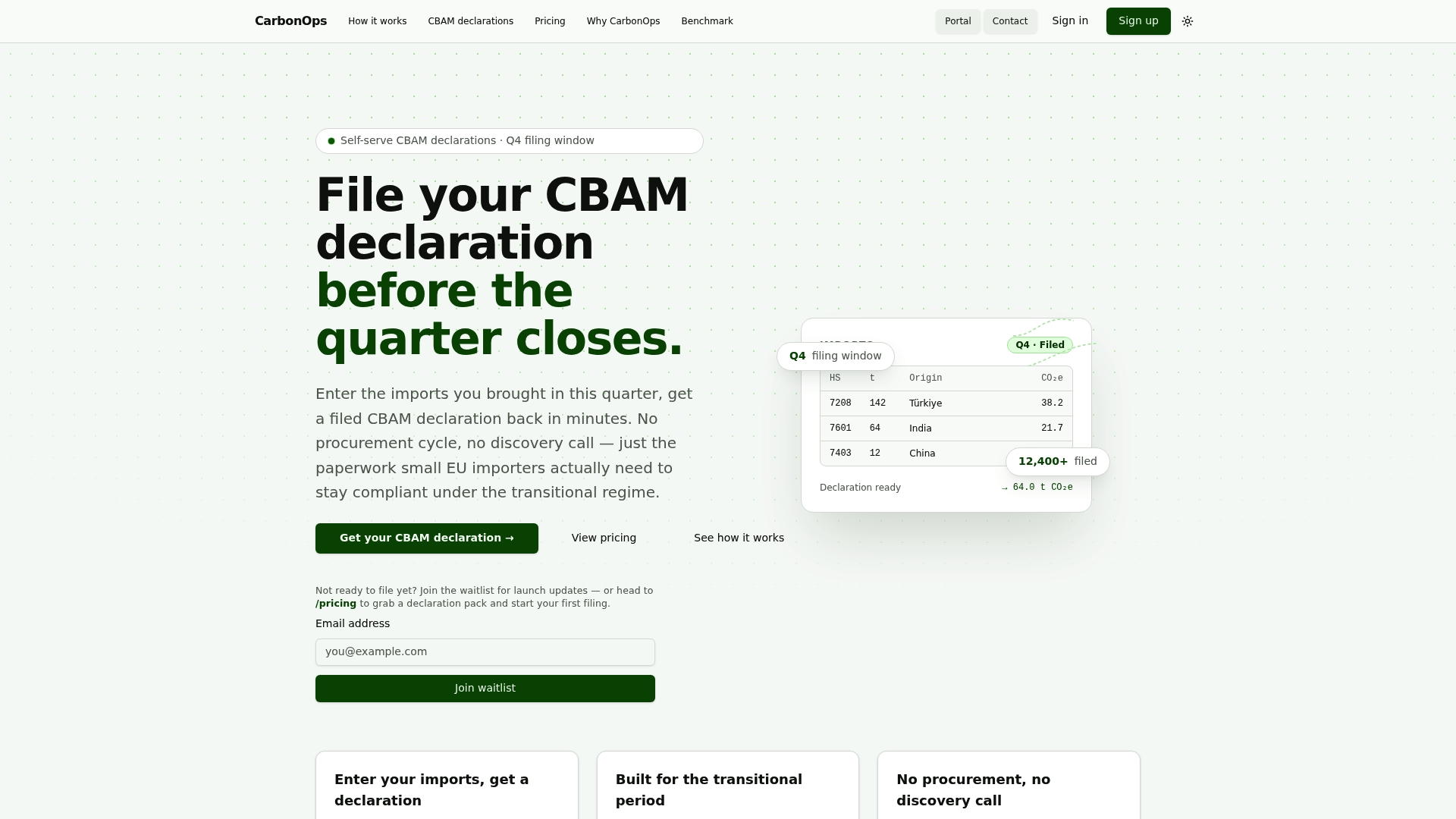
One-time pay-per-declaration pricing, with single and multi-pack options (5 or 15 filings). No subscription, no recurring commitment. Review plans and start your first declaration at CarbonOps, or upload a sample CSV to see how your supplier data maps before you commit.
Sources
Check these official documents for current Portal UI screenshots, accepted file formats, and step-by-step procedural details. Portal releases update the UI periodically, so verify that the screen labels you see match the version referenced in the manual you are using.
- User Manual for CBAM Declarants- Release 1.3-v.1.62.pdf
- Application User Manual - CBAM Declarant Portal ver 1.2
This article is general information, not a substitute for advice from a qualified lawyer. Consult a qualified legal professional about your own circumstances before acting on anything here.